
Studio Editor
The local FFmpeg AI video editor for vertical Shorts
Viducia AI makes the first cut. The Studio Editor is where you change anything: a seven-track timeline built for vertical video, previewed from the same timeline the renderer uses. When it is right, your own PC renders the master with FFmpeg.
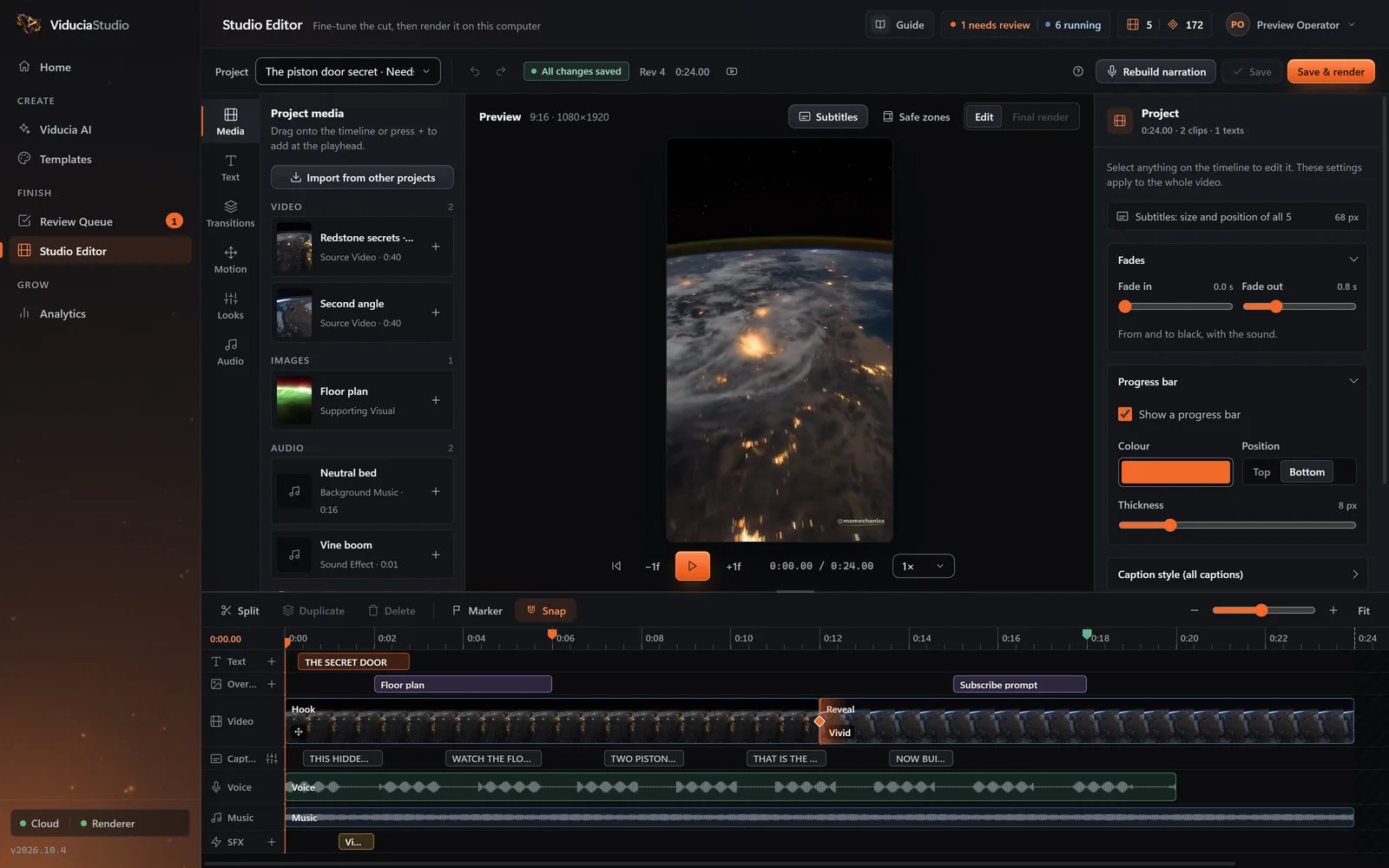
Seven tracks, one timeline
Text, Overlays, Video, Captions, Voice, Music and SFX, plus markers for planning beats. Zoom, snap and resize as you would in any editor.
- Text
Titles and callouts: 8 text styles, 10 fonts, outline, shadow and box, with 8 entrance and 5 exit animations. Edit and drag them right on the preview.
- Overlays
Picture overlays with an entrance, an exit and opacity. Select several and move or resize them together.
- Video
The footage: split, trim, duplicate, reorder, change speed from 0.5× to 2×, set clip volume, add motion and a look, or find better footage.
- Captions
Every caption at once: size, top, middle or bottom, font and colours. Drag and resize them on the preview.
- Voice
The narration and its waveform. It is never cut; rewrite a line and rebuild the narration to change it.
- Music
The music bed, with fades and “Duck under the voice”. Voice, footage and music levels start at your template’s mix.
- SFX
Sound effects on exact moments, each with its own level.
Magnetic, sync-locked ripple editing
The video track is magnetic: clips sit back to back, with no gaps. Trim, split or delete a clip and everything after it ripples, with texts, overlays, sound effects and markers moving by the same amount.
The narration is never cut. If a deletion would leave the voice running past the end of the video, the clip before the gap holds on, looping its footage, to cover the voice.
20 transitions, 11 motion presets, 9 looks
A transition lasts from 0.1 to 2 seconds and overlaps the cut, so the project keeps its length. Motion is keyframed, with up to 12 keyframes and 5 easings per clip.
Fades5
- Crossfade
- Dissolve
- Dip to black
- Flash white
- Blur
Motion7
- Zoom in
- Slide left
- Slide right
- Slide up
- Slide down
- Smooth left
- Smooth right
Wipes4
- Wipe left
- Wipe right
- Wipe up
- Wipe down
Shapes4
- Circle open
- Circle close
- Radial
- Pixelate
Motion presets
Looks
Nine colour looks, plus brightness, contrast, saturation and sharpness. Shown here on a frame from a real Standard Short, using each look’s brightness, contrast and saturation in your browser; the app also sharpens.
-
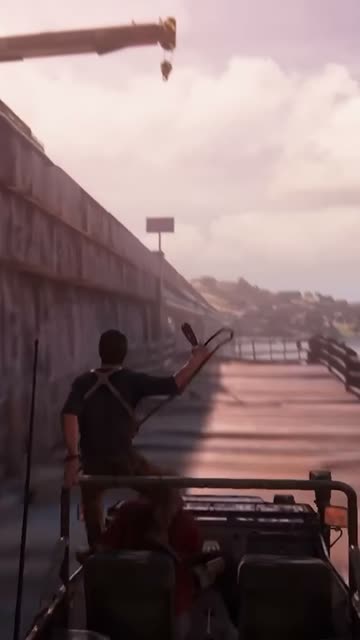 Original As shot
 - Vivid Richer colour
- Cinematic Darker, muted
- Punchy Hard contrast
- Soft Gentle, lifted
- Faded film Flat, washed
- Mono Black and white
- Crisp Sharpened
- Night Dark, cool
Re-voice, re-source, re-render
Saving your edits is always free. The two changes that need new work in the cloud use edit tokens, quoted before they run; rendering again on your PC is free.
| In the editor | What it does | Uses |
|---|---|---|
| Rebuild narration | Edit the script and voice it again, without remaking the video | 15 tokens |
| Find better footage | Replace a clip with a new one from YouTube | 10 tokens |
| Save & render | Render your edited timeline again on your PC | Free, 0 tokens |
| Save | Keep your edits; the finished video stays untouched until you render | Free |
Rebuild narration is for the footage formats. In Guess It and the other knowledge formats each round carries its own voice and sounds, so trimming or reordering a round keeps them together.
Rendered on your PC with FFmpeg
The cloud checks every save and signs the render instructions. Your PC renders the master with the FFmpeg build that ships inside the app, so there is nothing else to install.
- Encoder
- NVIDIA NVENC when your PC has a supported NVIDIA graphics card; the CPU otherwise
- Output
- Vertical MP4, 1080 × 1920 by default, 30 fps, H.264 video and AAC audio
- Checks
- Every input file is checked before rendering, and the cloud verifies the upload’s size and checksum
- Safety
- A new render replaces the finished video only after it passes validation
- Preview
- Built from the same timeline as the render, with Safe zones to show where TikTok, Reels and Shorts draw their buttons
Keyboard shortcuts
The editor runs from the keyboard. Press ? in the app for the full list.
| Keys | Action |
|---|---|
| SpaceorK | Play or pause |
| JorL | Back or forward 1 second |
| Left arroworRight arrow | Back or forward one frame |
| SorCtrlB | Split the clip at the playhead |
| Delete | Delete the selection |
| CtrlD | Duplicate the selection |
| CtrlZ | Undo |
| CtrlShiftZ | Redo |
| CtrlS | Save |
| M | Add a marker |
| PlusorMinus | Zoom the timeline in or out |
| Esc | Clear the selection |
A safety net under every edit
120 steps of undo
Step back through any edit, including ripples, splits and deletions.
Edits survive a crash
Unsaved changes are kept as a local draft; Restore edits brings them back.
Room to work
Projects from 5 seconds to 10 minutes, with up to 200 clips, 60 texts and 100 overlays. Past 180 seconds the editor warns that YouTube will treat it as a regular video.
Questions about editing
Can I change a video after Viducia makes it?
Yes. Open it in the Studio Editor to trim, reorder, swap footage, fix captions or rebuild the narration. Saving and re-rendering is free; new narration uses 15 edit tokens and replacing a clip 10.
Where does the video render?
On your Windows PC. The cloud prepares the project, then the app renders the 1080 × 1920 master with its bundled FFmpeg, using NVIDIA NVENC when your PC has a supported NVIDIA graphics card and the CPU otherwise. Keep the app open while it renders.
What quality are the finished videos?
A vertical 9:16 MP4 with H.264 video and AAC audio at 30 fps. 1080p is the default; you can also choose 720p, 1440p or 4K, though sources are fetched at up to 1080p, so the larger sizes are upscaled.
See the editor on a real project
Every phone in the home page’s format wall opens its real ViduciaStudio project in the Studio Editor. In the app, every finished video opens there with one click from the Review Queue.